Peachoid Labs documentation
Setup & Integration.
Set up the module, use it to identify the attached USB device, and control USB power from software.
Coding Agent Integration · Identification & Control · Power Cycling & Recovery
Coding Agent Integration
Copy these instructions into Claude Code, Codex, Cursor, or another coding agent, then describe what you want your software to do.
View Markdown
# PL-USB20-SW1 integration instructions

## Implement the integration
Inspect the existing project and implement the requested integration using
its language, runtime, conventions, and tests. Keep code changes separate
from hardware testing. Install drivers only when the user requests setup or
a hardware test. Switch live VBUS only when the user explicitly requests a
hardware test.

## Identify the module
The PL-USB20-SW1 is a USB 2.0 hub with one controlled downstream port (port 1).
Its USB VID is 1A86 and PID is 8094. Use the tool below for the host OS.

Identify the module by its unique serial before controlling power. Locations
and DevicePaths can change, so discover the current target each time. If no
module matches, or more than one matches, stop and report the issue.

Run only the requested operation. Ask if the target or operation is unclear;
identification alone does not require switching power. All serials and paths
below are examples to replace with the target's discovery results.

## Linux and macOS
Use uhubctl where supported. Install if needed: `sudo apt install uhubctl`
on Debian/Ubuntu/Raspberry Pi OS, or `brew install uhubctl` on macOS with Homebrew.

Start by listing the connected modules:
```sh
sudo uhubctl
```
Example output (serial 123456, location 1-2):
Current status for hub 1-2 [1a86:8094 Peachoid Labs PL-USB20-SW1 123456, USB 2.00, 1 ports, ppps]

Find the exact target serial in the output, then set HUB_LOCATION to its
current location. Choose only the command for the requested operation:
```sh
HUB_LOCATION="1-2" # Replace with the discovered location
sudo uhubctl -l "$HUB_LOCATION" -p 1 -a off          # OFF
sudo uhubctl -l "$HUB_LOCATION" -p 1 -a on           # ON
sudo uhubctl -l "$HUB_LOCATION" -p 1 -a cycle -d 3   # Power cycle: 3 seconds off
```

## Windows (PowerShell)
Use VirtualHere vhfilter.exe:
https://www.virtualhere.com/sites/default/files/usbserver/vhfilterexe/vhfilter.exe
Run from its folder. If the USB Hub Filter driver is not installed, run
`.\vhfilter.exe --install-filter` as administrator. Stop and ask the user to restart
Windows, then return to this conversation to continue. After restart, run
`.\vhfilter.exe --list-hubs`.

Once setup is complete, list the connected modules:
```powershell
.\vhfilter.exe --list-hubs
```
Example output (serial 123456):
USB\VID_1A86&PID_8094\MSFT20123456       has  1 ports   is USB 2

In this DevicePath format, the final six digits identify the module serial.
Find the exact target serial and set $devicePath to its full discovered path.
Choose only the command for the requested ON or OFF operation:
```powershell
$devicePath = 'USB\VID_1A86&PID_8094\MSFT20123456' # Replace with the discovered path
.\vhfilter.exe --switch-port 1 off $devicePath # OFF
.\vhfilter.exe --switch-port 1 on $devicePath  # ON
```
To power-cycle that module, turn VBUS off for three seconds and then back on:
```powershell
.\vhfilter.exe --switch-port 1 off $devicePath
if ($LASTEXITCODE -ne 0) { throw 'VBUS OFF failed' }
Start-Sleep -Seconds 3
.\vhfilter.exe --switch-port 1 on $devicePath
if ($LASTEXITCODE -ne 0) { throw 'VBUS ON failed' }
```

## Verify the result
Check command results and report failures. Limit retries and use timeouts
so recovery cannot continue indefinitely.

After turning power on or completing a power cycle, verify the expected result
for the application. If a connected downstream device is expected to enumerate,
wait for it to become available using a reasonable timeout. Rediscover and
reconnect as needed; its device path may change. The module's serial number
identifies the module, not the downstream device.

Report what was verified. If hardware is unavailable, say that physical
switching and device recovery were not tested.

## Hardware limits
The module switches USB VBUS, so an externally powered device may remain
powered and may not fully reset. Switching up to 2 A also requires an upstream
source that can supply that current.

Optional examples and troubleshooting: https://peachoidlabs.com/docs/
Example Prompts
First-Time Setup
Help me set up my PL-USB20-SW1 modules and list their serial numbers. Offer a 3-second power-cycle test, asking which module to test if more than one is connected. During the test, the module’s green LED should turn off and back on.
Find and Communicate with a Device
Update my project to find and communicate with the device connected through a module with a serial number I specify. Use the module’s serial number to resolve the device’s current connection in case its device path changes.
Recover an Unresponsive Device
Update my project to monitor the device connected through a module with a serial number I specify. If the device stops responding, cycle its USB power, reconnect, and verify that it responds. Use bounded retries and report failures.
Timed Power Cycle
Update my project to list all connected modules and let me select one by serial number. Let me specify how long to keep its USB power off in seconds, then turn it back on automatically. Report any failures.
Identify and Control Modules
Module-to-Device Identification
Use the module’s unique serial number to find the attached USB device, including identical devices and devices without their own serial numbers. The module’s identity stays the same when the module/device pair moves to another USB port.
Host software uses that identity to resolve the device’s current connection. For example, a serial adapter connected through module 100001 may appear as COM17 and later COM23. The module does not guarantee a fixed device path or port assignment.
Linux and macOS
On supported Linux/macOS hosts, use uhubctl to control a module. This shell pattern reads the module's USB serial from uhubctl discovery output, resolves its current location, then controls its single port.
Run only the install command for your platform. Discovery output is shown for identification.
# 1. Install uhubctl if needed: Debian, Ubuntu, or Raspberry Pi OS
sudo apt install uhubctl

# macOS with Homebrew
brew install uhubctl

# 2. Discover the target module
sudo uhubctl
Current status for hub 1-2 [1a86:8094 Peachoid Labs PL-USB20-SW1 123456, USB 2.00, 1 ports, ppps]

# 3. Target module serial number
SERIAL="123456"

# 4. Resolve hub location by serial
HUB_LOCATION="$(
  sudo uhubctl | awk -v serial="$SERIAL" '
    /^Current status for hub / && index($0, serial) {
      sub(/^Current status for hub /, "")
      sub(/ .*/, "")
      print
      exit
    }
  '
)"

# 5. Stop if the serial number was not found
[ -n "$HUB_LOCATION" ] || { echo "Module serial not found: $SERIAL"; exit 1; }

# 6. Switch the module's single controlled port
sudo uhubctl -l "$HUB_LOCATION" -p 1 -a off
sudo uhubctl -l "$HUB_LOCATION" -p 1 -a on

# 7. Power cycle: turn off for 3 seconds, then back on
sudo uhubctl -l "$HUB_LOCATION" -p 1 -a cycle -d 3
Windows
Download vhfilter.exe from VirtualHere, then open PowerShell and navigate to the folder containing it. A PowerShell profile in Windows Terminal also works.
# 1. Install the filter driver once, then restart Windows
.\vhfilter.exe --install-filter

# 2. Discover the target module
.\vhfilter.exe --list-hubs
The following hubs are attached that support Per-Port-Power-Switching:
USB\VID_1A86&PID_8094\MSFT20123456       has  1 ports   is USB 2
                            └─ module serial: 123456

# 3. Switch the module's single controlled port
.\vhfilter.exe --switch-port 1 off "USB\VID_1A86&PID_8094\MSFT20123456"
.\vhfilter.exe --switch-port 1 on "USB\VID_1A86&PID_8094\MSFT20123456"

# 4. Power cycle: turn off for 3 seconds, then back on
.\vhfilter.exe --switch-port 1 off "USB\VID_1A86&PID_8094\MSFT20123456"; Start-Sleep -Seconds 3; .\vhfilter.exe --switch-port 1 on "USB\VID_1A86&PID_8094\MSFT20123456"
Verify Module-to-Device Mapping
These examples identify two modules by serial number and write a distinct marker file to each attached drive to verify the association. They do not switch USB power.
Linux
This example uses uhubctl to resolve each module's current hub location, then follows the module's single downstream port to the mounted drive.
# Record module serials with attached drives.
# Write a distinct marker file to verify each mapping.
# No power cycle required.
MODULE_A_SERIAL="123456"
MODULE_B_SERIAL="123457"

module_mount_by_serial() {
  local serial="$1" hub_location usb_path block_device mount_point

  hub_location="$(
    sudo uhubctl | awk -v serial="$serial" '
      /^Current status for hub / && index($0, serial) {
        sub(/^Current status for hub /, "")
        sub(/ .*/, "")
        print
        exit
      }
    '
  )"
  [ -n "$hub_location" ] || { echo "Module serial not found: $serial" >&2; return 1; }

  usb_path="/sys/bus/usb/devices/${hub_location}.1"
  [ -d "$usb_path" ] || { echo "Downstream port not found for $serial" >&2; return 1; }

  while IFS= read -r block_device; do
    mount_point="$(findmnt -rn -S "/dev/$block_device" -o TARGET | head -n 1)"
    if [ -n "$mount_point" ]; then
      printf '%s\n' "$mount_point"
      return 0
    fi
  done < <(find "$usb_path" -type d -path '*/block/*' -printf '%f\n')

  echo "Mounted drive not found for $serial" >&2
  return 1
}

MODULE_A_MOUNT="$(module_mount_by_serial "$MODULE_A_SERIAL")" || exit 1
MODULE_B_MOUNT="$(module_mount_by_serial "$MODULE_B_SERIAL")" || exit 1
[ "$MODULE_A_MOUNT" != "$MODULE_B_MOUNT" ] || { echo "Module A and Module B resolve to the same drive" >&2; exit 1; }

# Write a marker file to each identified drive
printf 'Module %s\n' "$MODULE_A_SERIAL" > "$MODULE_A_MOUNT/module-$MODULE_A_SERIAL.txt"
printf 'Module %s\n' "$MODULE_B_SERIAL" > "$MODULE_B_MOUNT/module-$MODULE_B_SERIAL.txt"
This resolver uses Linux sysfs and findmnt. Confirm that both marker files appear on the expected drives.
macOS
Use uhubctl to verify each module by serial. Keep the module-to-volume mapping in your setup configuration, then write one marker file to each verified mounted path.
# Record module serials with attached drives.
# Write a distinct marker file to verify each mapping.
# No power cycle required.
MODULE_A_SERIAL="123456"
MODULE_B_SERIAL="123457"

# Verify that both modules are present
UHUBCTL_OUTPUT="$(sudo uhubctl)"
printf '%s\n' "$UHUBCTL_OUTPUT"
printf '%s\n' "$UHUBCTL_OUTPUT" | grep -F " $MODULE_A_SERIAL," >/dev/null || { echo "Module A not found: $MODULE_A_SERIAL" >&2; exit 1; }
printf '%s\n' "$UHUBCTL_OUTPUT" | grep -F " $MODULE_B_SERIAL," >/dev/null || { echo "Module B not found: $MODULE_B_SERIAL" >&2; exit 1; }

# Map each module serial to its mounted volume
mount_for_module() {
  case "$1" in
    123456) printf '%s\n' "/Volumes/Source Drive" ;;
    123457) printf '%s\n' "/Volumes/Destination Drive" ;;
    *) echo "Module serial not mapped: $1" >&2; return 1 ;;
  esac
}

MODULE_A_MOUNT="$(mount_for_module "$MODULE_A_SERIAL")" || exit 1
MODULE_B_MOUNT="$(mount_for_module "$MODULE_B_SERIAL")" || exit 1
[ -d "$MODULE_A_MOUNT" ] || { echo "Module A volume not found: $MODULE_A_MOUNT" >&2; exit 1; }
[ -d "$MODULE_B_MOUNT" ] || { echo "Module B volume not found: $MODULE_B_MOUNT" >&2; exit 1; }
[ "$MODULE_A_MOUNT" != "$MODULE_B_MOUNT" ] || { echo "Module A and Module B resolve to the same drive" >&2; exit 1; }

printf 'Module %s\n' "$MODULE_A_SERIAL" > "$MODULE_A_MOUNT/module-$MODULE_A_SERIAL.txt"
printf 'Module %s\n' "$MODULE_B_SERIAL" > "$MODULE_B_MOUNT/module-$MODULE_B_SERIAL.txt"
Use diskutil list to inspect mounted volumes. The mapping keeps the module serial as the stable key; confirm that both marker files appear on the expected drives.
Windows
On Windows, vhfilter.exe --list-hubs exposes each module's DevicePath. The example below resolves both modules by serial, follows the Windows device tree to a mounted volume, and writes one marker file to each drive.
# Run from the folder containing vhfilter.exe
# Record module serials with attached drives.
# Write a distinct marker file to verify each mapping.
# No power cycle required.
$moduleASerial = "123456"
$moduleBSerial = "123457"
$hubLines = .\vhfilter.exe --list-hubs

function Get-ModuleDevicePath([string]$serial) {
  $line = $hubLines | Select-String -SimpleMatch $serial | Select-Object -First 1
  if (-not $line -or $line.Line -notmatch '(USB\\VID_1A86&PID_8094\\[^\s]+)') {
    throw "Module serial not found: $serial"
  }
  $Matches[1]
}

function Get-ModuleVolume([string]$serial) {
  $moduleId = Get-ModuleDevicePath $serial
  foreach ($device in Get-PnpDevice -PresentOnly) {
    $currentId = $device.InstanceId
    while ($currentId) {
      $parentId = (Get-PnpDeviceProperty -InstanceId $currentId -KeyName 'DEVPKEY_Device_Parent' -ErrorAction SilentlyContinue).Data
      if (-not $parentId) { break }
      if ($parentId -ieq $moduleId) {
        $disks = @(Get-CimInstance Win32_DiskDrive | Where-Object { $_.PNPDeviceID -ieq $device.InstanceId })
        foreach ($disk in $disks) {
          foreach ($partition in Get-Partition -DiskNumber $disk.Index -ErrorAction SilentlyContinue) {
            $volume = $partition | Get-Volume -ErrorAction SilentlyContinue
            if ($volume.DriveLetter) { return "$($volume.DriveLetter):" }
          }
        }
        break
      }
      $currentId = $parentId
    }
  }
  throw "Mounted drive not found for $serial"
}

$moduleA = Get-ModuleVolume $moduleASerial
$moduleB = Get-ModuleVolume $moduleBSerial
if ($moduleA -eq $moduleB) { throw "Module A and Module B resolve to the same drive" }

Set-Content -LiteralPath (Join-Path $moduleA "module-$moduleASerial.txt") -Value "Module $moduleASerial"
Set-Content -LiteralPath (Join-Path $moduleB "module-$moduleBSerial.txt") -Value "Module $moduleBSerial"
The Windows example assumes one mounted volume per drive. Confirm that both marker files appear on the expected drives.
Automated Power Cycling and Recovery
Your application can cycle USB power on demand, on a schedule, or when a device stops responding. Removing and restoring USB VBUS normally power cycles a USB-powered device, which can help when a software reset does not restore operation.
Recovery Workflow
Use the platform commands above as part of your application’s recovery workflow:
- Identify the attached device through its module’s serial number and check whether recovery is needed.
- Resolve the module’s current location or DevicePath before controlling its power.
- Switch USB power off, wait three seconds, then switch it back on.
- Wait for the device to reconnect, resolve its current device path, and verify that it responds.
- Report success or failure. Use timeouts and bounded retries to prevent an endless recovery loop.
Python Power-Cycle Example (Linux/macOS)
Requires Python 3.7+ and uhubctl on a supported Linux/macOS host. The script finds a module by serial number, switches USB power off for three seconds, then back on, and checks the reported states.
Save as power_cycle.py:
import argparse
import re
import subprocess


def power_cycle(serial: str) -> None:
    discovery = subprocess.run(
        ["uhubctl"], check=True, capture_output=True,
        text=True, timeout=15,
    )
    locations = []
    for match in re.finditer(
        r"^Current status for hub (\S+) \[1a86:8094 ([^\]]+)\]$",
        discovery.stdout, re.MULTILINE | re.IGNORECASE,
    ):
        identity = match[2].split(",", 1)[0].split()
        if "PL-USB20-SW1" in identity and identity[-1] == serial:
            locations.append(match[1])

    if len(locations) != 1:
        raise ValueError(
            f"Expected one module with serial {serial}; found {len(locations)}"
        )

    result = subprocess.run(
        ["uhubctl", "-l", locations[0], "-e",
         "-H", f"PL-USB20-SW1 {serial},", "-p", "1",
         "-a", "cycle", "-d", "3"],
        check=True, capture_output=True, text=True, timeout=18,
    )
    states = re.findall(
        r"^New status for hub " + re.escape(locations[0])
        + r" \[[^\]]+\]\n\s*Port 1: ([0-9a-f]{4})\b",
        result.stdout, re.MULTILINE | re.IGNORECASE,
    )
    # USB 2.0 port-status bit 8 reports whether power is enabled.
    if [bool(int(state, 16) & 0x0100) for state in states] != [False, True]:
        raise RuntimeError(
            result.stderr.strip() or "Could not verify port 1 switched OFF then ON."
        )
    print(f"Module {serial} reported port 1 OFF, then ON.")


if __name__ == "__main__":
    parser = argparse.ArgumentParser(description="Power cycle a module by serial.")
    parser.add_argument("serial", help="Target module serial number")
    args = parser.parse_args()
    try:
        power_cycle(args.serial)
    except subprocess.CalledProcessError as error:
        raise SystemExit((error.stderr or "").strip() or str(error))
    except (OSError, subprocess.SubprocessError, ValueError, RuntimeError) as error:
        raise SystemExit(str(error))
Run with your module’s serial number:
python3 power_cycle.py 123456Replace 123456 with your module’s serial. Use sudo if required for USB access, with both python3 and uhubctl on its command path.
Check the port state after an error or timeout. The script checks reported USB power states; your application handles reconnection and device health checks. For Windows, use the vhfilter commands above.
Multi-Unit Installation
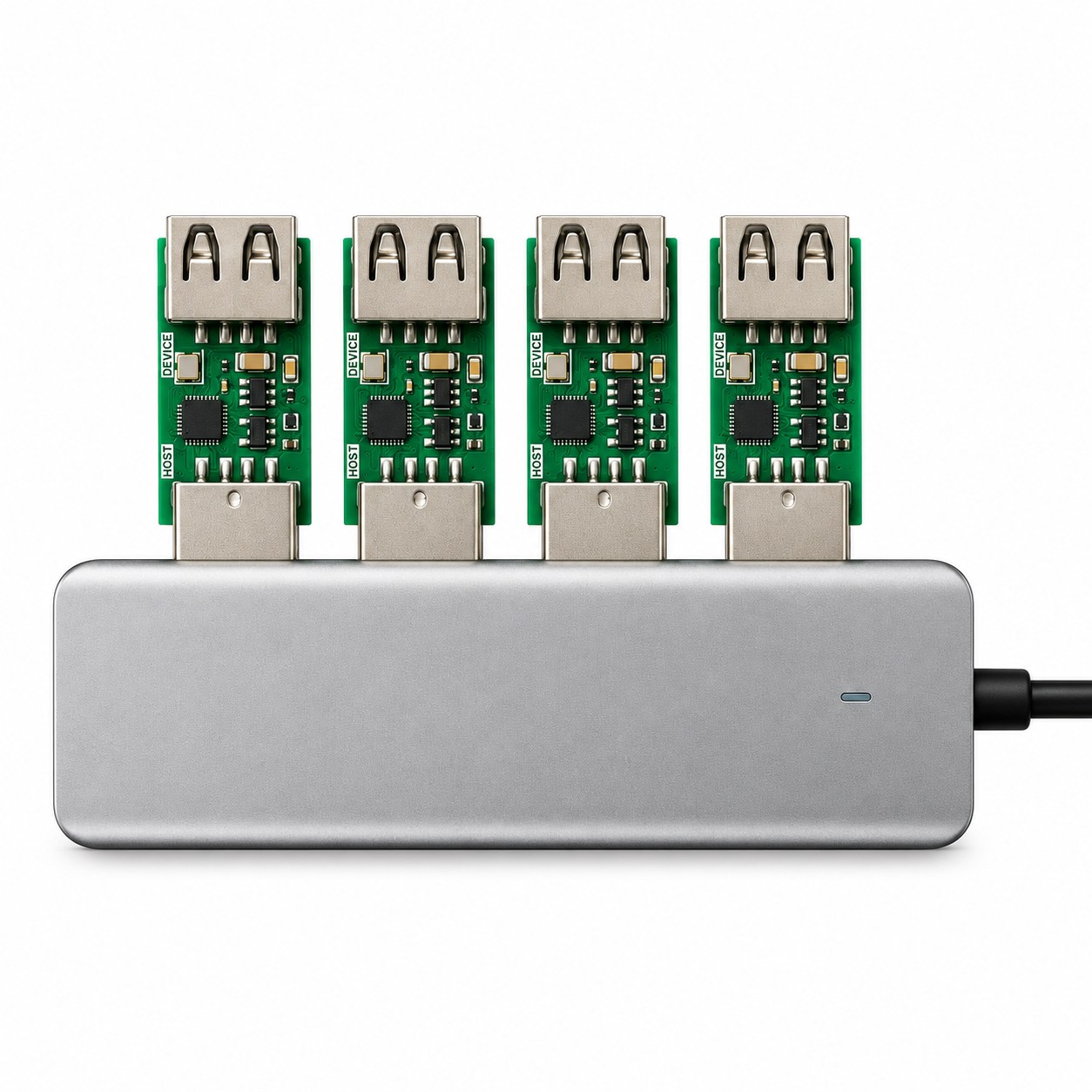
Connect one module per USB device through a conventional USB hub or separate host USB ports. Each module appears as an independent managed hub. Record its unique serial number alongside the attached device so your software can target each module/device pair independently.
Troubleshooting
Module is not found
Check the USB connection and look for the module’s serial number using uhubctl on Linux/macOS or vhfilter.exe --list-hubs on Windows. Check USB access permissions on Linux/macOS. On Windows, install the vhfilter driver and restart Windows if setup is incomplete.
Device does not reset as expected
Confirm that you targeted the correct module and that USB power switches off and back on. Rediscover the device before reconnecting. For devices with a separate power supply, see the power limitation.
Device loses power under load
Check that the upstream USB port or powered hub can supply enough current for the connected devices. The module’s 2 A switching capability does not increase the current available from that source.
Device stops responding after idle on Windows
Temporarily disable USB selective suspend to check whether power management contributes to the problem. Restore the setting if it makes no difference.
Need help?
Contact [email protected] with a brief description of the issue and your operating system.
Engineering Files
Mechanical reference files for the PL-USB20-SW1: